Skip to content
User Guide

Apple Watch

Everything you need to know to get the most out of Formasync Trainer on your Apple Watch.

Step 01

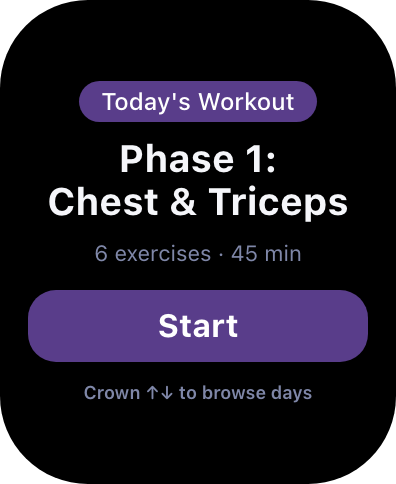
Watch Home Screen

  • See today's scheduled workout.
  • Start a workout.
  • Use the crown to scroll through previous and future workouts.
  • Access the Main Menu.
Apple Watch home screen
Step 02

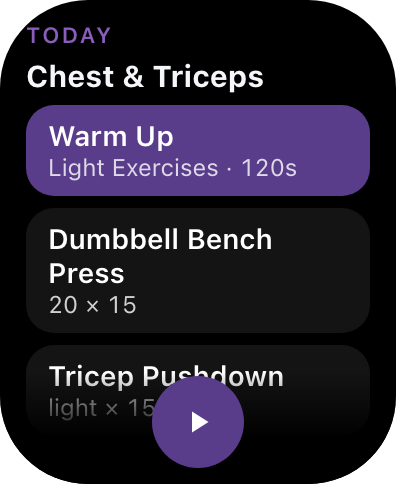
Workout Overview

  • After starting a workout from the Home Screen, see an overview of the entire workout before starting.
  • Plan your use of the equipment.
Workout start screen
Step 03

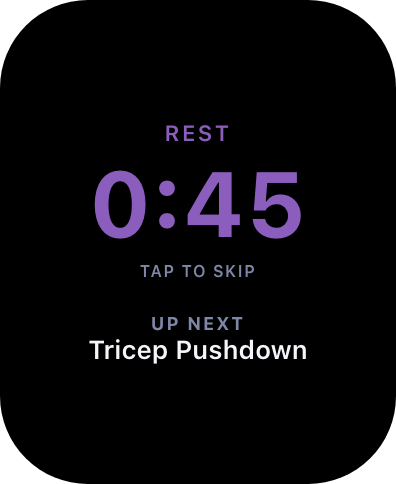
Next Up

  • After completing a Set, see what is next.
  • Plan your use of equipment.
Next up screen
Step 04

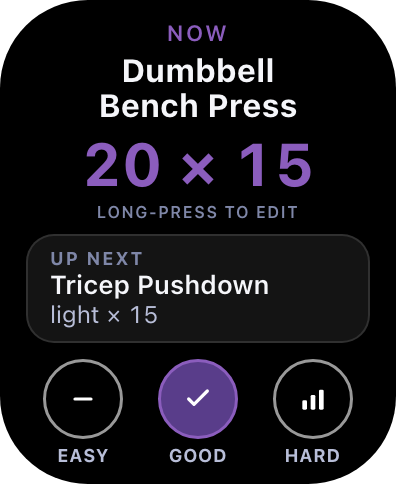
Current Exercise

  • See the current exercise, requested repetitions, and weight.
  • See the next exercise, requested repetitions, and weight.
  • Rate the current exercise to advance to the next.
  • Ratings help us plan your future workouts so you progress faster.
  • Use the crown to scroll down and see an overview of the rest of the workout.
Current exercise screen
Step 05

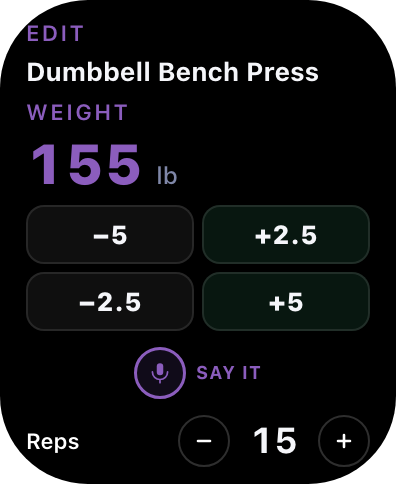
Change Exercise Details

  • While viewing the current exercise, press firmly on the screen to open a menu of options.
  • Pressing the Change icon (bottom right) opens the Change screen.
  • Change the current exercise to something else (maybe the equipment was unavailable).
  • Change the repetitions or weight you completed.
  • Workouts assume you'll attempt the current exercise — we default to the repetition field.
  • After making changes, rate the current exercise.
  • All changes are saved to the server and used to help you progress.
Change exercise screen
Step 06

Workout Complete

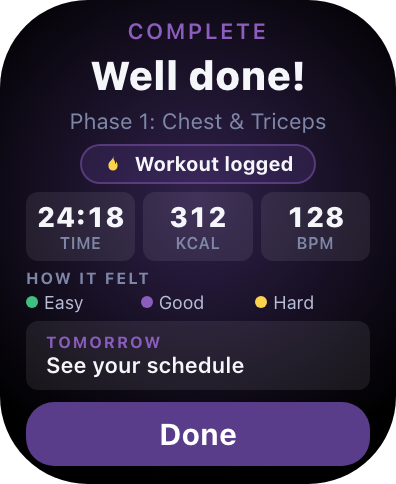
  • At the end of your workout, we present the data we've collected to help you understand and plan your workouts.
  • All data is saved with the Apple Watch to help you close those rings.
  • Rate the entire workout at the end. This data helps us plan future workouts and keep you progressing.
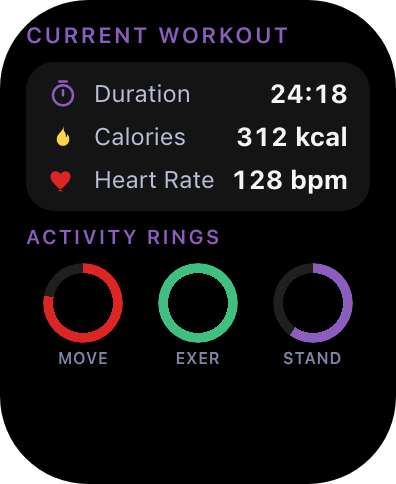
  • Current stats are also available during the workout by swiping right from the current exercise screen.
Workout complete screen
Step 07

Audio Control

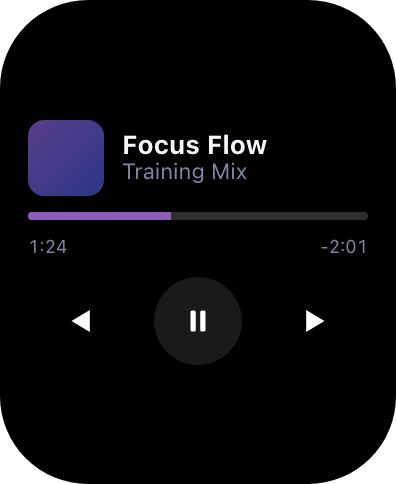
  • Control any background audio you have playing without leaving the application.
  • Swipe left from the current workout screens to see the audio controls.
Audio control screen
Step 08

Main Menu

  • Get back to the Home screen by pressing "Today".
  • Start an open workout by pressing "Open Workout" — keeps track of your stats and time only.
  • "1-Welcome" plays an audio recording welcoming you to the application.
  • "2-Terminology" plays an audio recording explaining some of the exercise language used in the app.
Main menu screen